Epilude is our top Mac dictation choice for long Cursor prompts, documentation, PR descriptions, review comments, and developer messages. It inserts cleaned text at the active cursor and can run speech recognition and Cleanup locally. Voibe is better when we need workspace-aware file and symbol matching today. Superwhisper gives us deeper mode controls. VoiceInk is the strongest open-source option.
Epilude works in both Cursor and VS Code through normal system-wide insertion. Its more specific Code-Aware Dictation, including automatic file references and stronger syntax handling, is still marked coming soon. We would not buy it today on that future feature. The current product wins this comparison for prose around code, not for speaking exact source code line by line.
Quick answer
| Developer job | Our pick | Reason |
|---|---|---|
| Best overall for prompts, docs, and reviews | Epilude | Clean system-wide writing, local option, Vocabulary, and a simple default |
| Best workspace-aware option today | Voibe | IDE extension resolves project files, folders, and symbols in Cursor, VS Code, and Windsurf |
| Best for custom modes and context | Superwhisper | Configurable voice and language models, prompts, and context sources |
| Best open-source option | VoiceInk | App-triggered modes, local models, optional local enhancement, and custom commands |
| Best cloud-first variable recognition | Wispr Flow | Reads active IDE symbols; file tagging currently supports Cursor and Windsurf, not VS Code |
The safest rule is simple: use voice for natural-language work around code, then use the keyboard and editor tools for exact syntax. Every generated command, path, identifier, and code change still needs review before it runs.
What developer dictation should handle
“Voice coding” describes several jobs that need different levels of precision:
| Job | What matters |
|---|---|
| Agent prompt | Complete context, constraints, prior attempts, and readable paragraphs |
| Documentation | Punctuation, headings, lists, and consistent technical terms |
| PR or review comment | Concision, tone, file references, and a cursor-level workflow |
| Commit message | Short structure and exact issue or component names |
| Terminal-agent prompt | Reliable insertion without accidentally submitting the command |
| Source code | Exact syntax, identifiers, delimiters, indentation, and editor context |
The first five are mostly writing. Dictation can save real effort there. The last one is closer to programming-language input and exposes every transcription error. We would dictate a docstring or plain-English comment, but we would type a security-sensitive shell command and verify every character before pressing Return.
What to compare
This is an editorial comparison of product workflows, not a controlled hands-on accuracy or speed benchmark. Features and model choices explain the shortlist; they do not establish a universal winner for output quality.
For your own trial, use a short reply, a longer email, a spoken correction, a list, and your usual names or technical terms. Check the result at the cursor, how much editing remains and where both transcription and Cleanup run. A local speech model alone does not establish local rewriting. The example phrases below are illustrative inputs and desired outputs, not benchmark results.
Five developer dictation options compared
| Product | Cursor and VS Code insertion | Workspace-aware files or symbols | Local cleaned output | Main tradeoff |
|---|---|---|---|---|
| Epilude | Yes | Coming soon, not part of our current ranking | Yes, in Local Mode | Current strength is prose around code rather than exact code syntax |
| Voibe | Yes | Yes, through its IDE extension | Yes, in on-device mode | Requires an extension for workspace-aware features |
| Superwhisper | Yes | App, selected-text, and clipboard context; custom modes | Yes, with local voice and language models | More settings and context choices |
| VoiceInk | Yes | App triggers plus selected, clipboard, or OCR screen context | Yes, with a local enhancement provider | Workspace-specific resolution is less direct |
| Wispr Flow | Yes | Variable Recognition; file tagging in Cursor and Windsurf | No, main processing is cloud-based | VS Code does not support its file-tagging feature |
Best overall for developer writing: Epilude
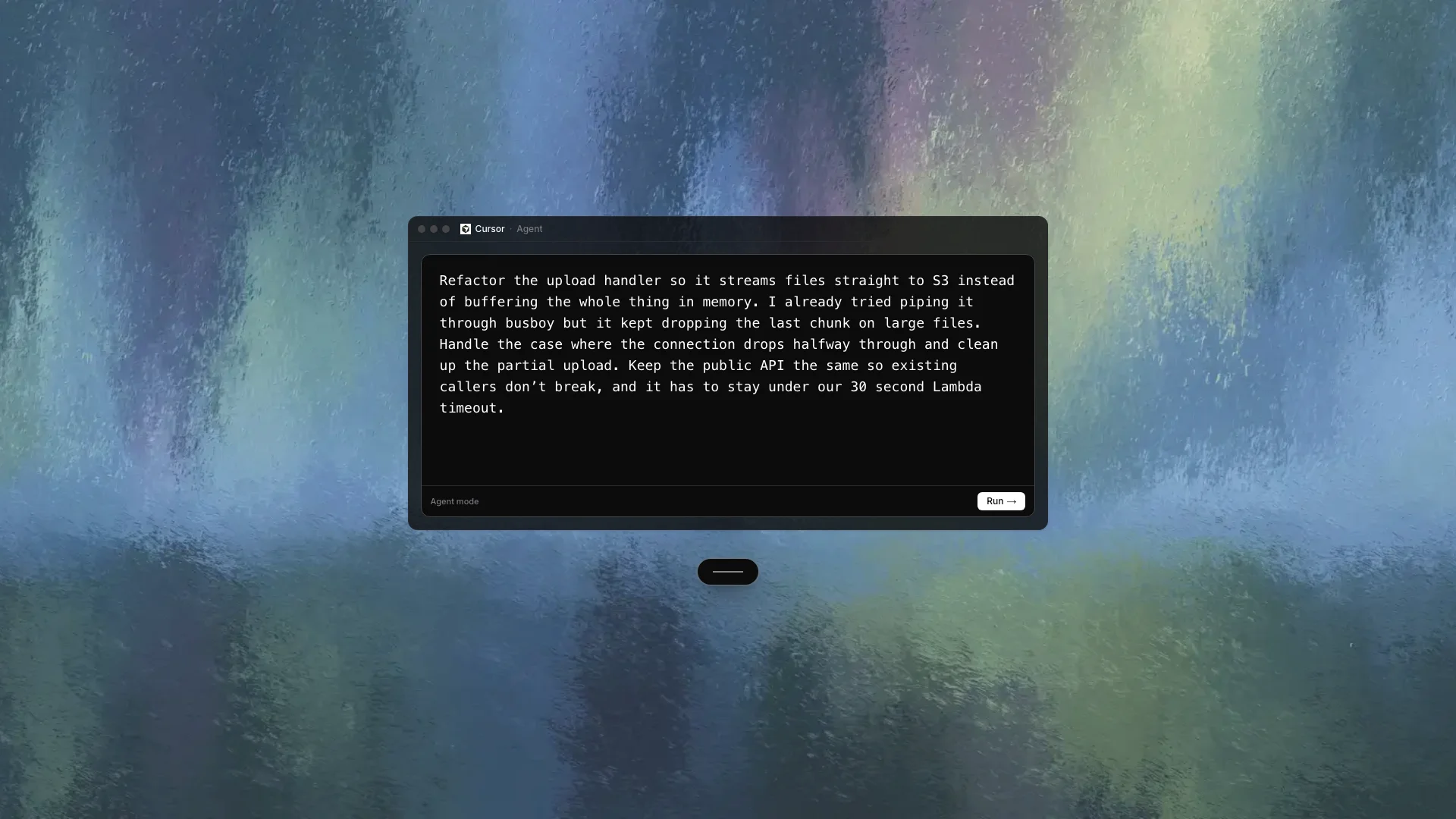
Epilude supports writing around code through its global shortcut. Place the cursor in Cursor Agent, hold the shortcut, speak the request and release. Cleanup handles filler and formatting before insertion; review the constraints before submitting.
An illustrative prompt would be:
In the upload handler, stream files straight to S3 instead of buffering the whole thing. We consider busboy already, but it dropped the last chunk on large files. Handle a disconnect halfway through, clean up the partial upload, keep the public API the same, and stay under the Lambda timeout.
A useful prompt can name the failed attempt, error case, compatibility requirement and runtime limit. Review the inserted text before submitting it.
The same shortcut worked in VS Code's Copilot Chat, a Markdown file, the Source Control message box, GitHub in a browser, Slack, and a terminal prompt. Epilude does not need an editor extension for ordinary insertion.
Vocabulary handled repeatable terms such as a library name, service acronym, or teammate. It also helped with a known filename when we added the exact spelling ourselves. This is a saved correction system, not live workspace indexing.
Local Mode kept transcription and Cleanup on our supported Apple Silicon Mac. That is useful when prompts include repository architecture or internal service names that should not pass through a hosted speech or language model. Full on-device AI Cleanup depends on the supported memory configuration.
The limitation is important. Epilude's developer page marks Code-Aware Dictation as coming soon. We therefore did not credit Epilude with automatic workspace file tags, project symbol resolution, or guaranteed camelCase conversion. A generic speech model can still get a technical token right, especially with Vocabulary, but that is not the same feature.
We would choose Epilude for natural-language prompts, design notes, PR prose, and reviews. We would choose Voibe when current workspace awareness decides the purchase.
Best workspace-aware option today: Voibe

Voibe's Developer Mode is the most specific current implementation in this comparison. Its extension runs in editors built on the VS Code extension API, including Cursor, VS Code, and Windsurf. It indexes file paths, folders, and symbols from the open workspace locally.
That changed the technical phrase test. Voibe could match a spoken filename or identifier against the project rather than asking the speech model to guess from sound alone. In supported AI chat surfaces, it can also attach referenced files or folders as context.
Voibe documents useful boundaries. The extension sends paths and symbols to the desktop product, not file contents, and the list stays in memory on the machine. The audio path still depends on the chosen on-device or cloud mode. JetBrains, Xcode, and Zed receive ordinary system-wide dictation without the workspace-aware extension features.
We would choose Voibe when prompts routinely name real project files or when VS Code and Cursor need the same workspace-aware setup now. Epilude is our overall choice for a simpler writing layer, local Cleanup, and work that extends beyond the editor.
Best for custom developer modes: Superwhisper
Superwhisper offers the most control over the processing path. We can choose local or cloud speech models, select a language model for cleanup, build a Custom Mode, and set it to activate in Cursor, VS Code, or a particular website.
Super Mode and Custom Mode can use application, selected-text, and clipboard context. That supports useful developer workflows: format the dictated text around the active app, rewrite a selected review comment, or ask a custom prompt to produce a code comment based on visible context.
Context deserves a privacy check. Superwhisper documents what each context source captures and shows the prompt sent to the AI stage in history. A local speech model does not keep the whole job local when the selected language model is hosted. We selected both local stages for the offline run.
Superwhisper suits developers who want control over prompts, models, modes and context. Epilude focuses on Mac writing defaults.
Best open-source option: VoiceInk
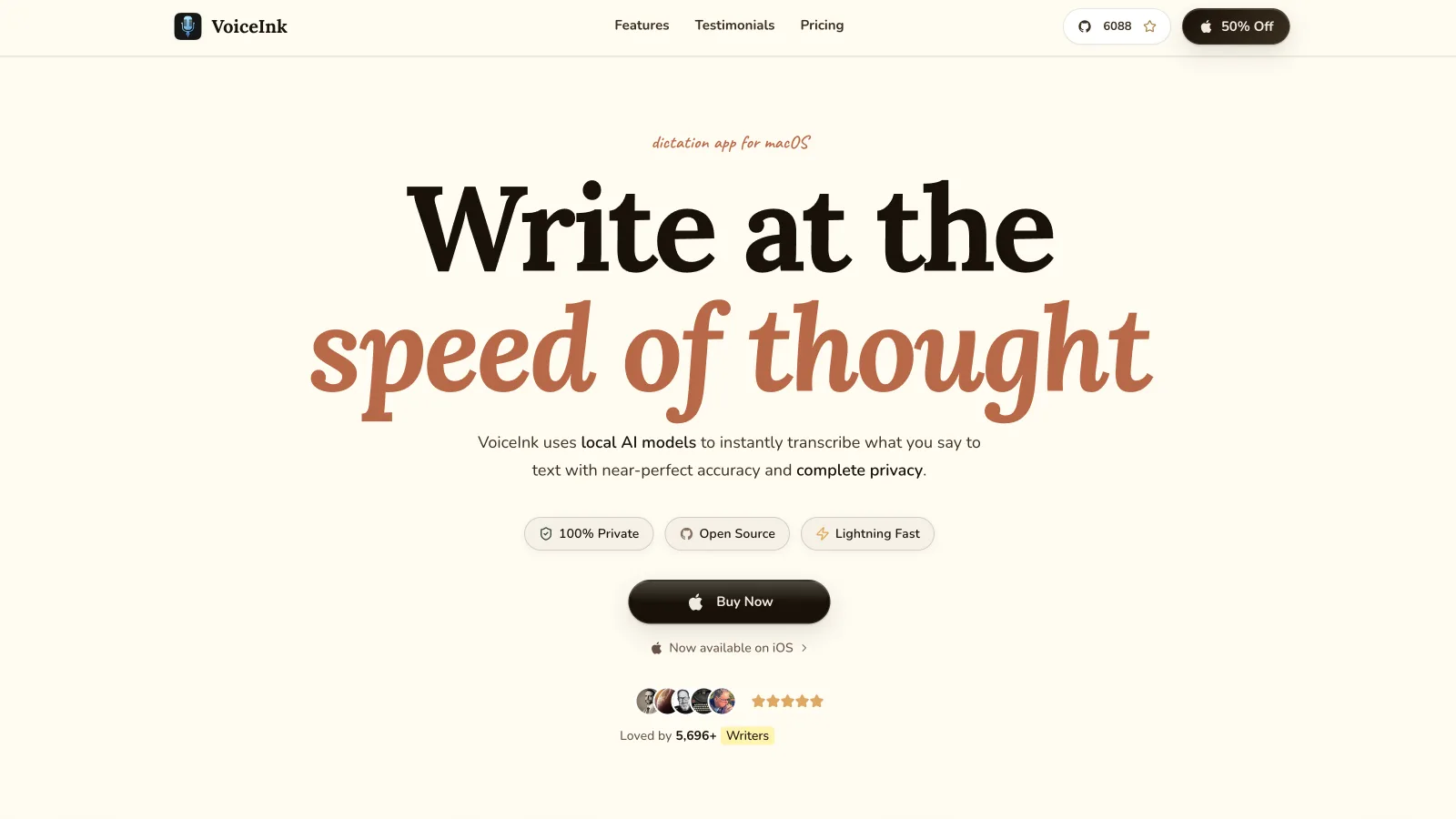
VoiceInk can assign a Mode to Cursor or VS Code through an app trigger. That Mode can choose its transcription model, enhancement provider, prompt, context, output behaviour, and shortcut. We built one developer mode for longer prompts and left normal writing on a simpler default.
Selected text, clipboard text, and visible-screen OCR can feed AI Enhancement when enabled. VoiceInk states that those context sources are sent as text to the chosen enhancement provider. A plain Dictation Mode does not send them. For an offline path, select a local transcription model and a local enhancement provider.
Custom Commands are unusually useful for developers. VoiceInk can pass the final text to a local shell command on standard input, so a technical user can append notes to a file, open a search, or connect dictation to an internal script. That command runs with the user's macOS permissions, which makes careful quoting and review part of the setup.
We would choose VoiceInk when open source, local model choice, and shell extensibility are the point. Epilude remains easier when we want sensible defaults rather than another configuration project.
Best cloud-first coding context: Wispr Flow
Wispr Flow's Variable Recognition reads symbols from the active IDE editor so dictated function, class, and variable names can match the codebase. It also offers file tagging in Cursor and Windsurf chat.
The platform boundary matters for this article. Wispr's current documentation says VS Code does not support file tagging, even though general dictation and variable recognition work there. We would not describe its Cursor and VS Code integrations as identical.
Wispr Flow is cloud-first. Its privacy controls and business terms may fit an approved hosted workflow, but it is not our choice when the prompt and cleanup must remain on a Mac. We would choose it for a team that wants managed cloud behaviour and current Cursor or Windsurf context features.
Five developer workflows that suit voice
Agent prompts
Speak the goal, relevant context, constraints, failed attempts, test requirement, and files the agent should inspect. Keep the prompt visible and edit it before submission.
PR descriptions
Talk through what changed, why, how it was tested, and the risky edge. Voice is well suited to the explanation that terse commit history fails to capture.
Code review comments
Explain the behaviour, consequence, and focused fix. A full sentence is often more useful than “race?” or “nit.”
Documentation and decision records
Dictate the outline and first pass, then use the editor for code blocks, links, tables, and exact notation.
Terminal-agent prompts
Dictate natural-language instructions to Claude Code, Codex, or another agent at the terminal prompt. Disable auto-send and inspect every command or path before pressing Return.
Where the keyboard still wins
We type exact source code, regular expressions, SQL, shell pipelines, secrets, migration commands, and compact syntax. Dictation is also a poor way to make a one-character change or move through structured editor controls.
A useful split is voice for intent and explanation, keyboard for exact symbols and execution. The agent can write a diff from the prompt; the developer still owns the review.
Which developer dictation app should we choose?
Choose Epilude for long prompts, docs, PRs, reviews, and messages across the Mac, especially when on-device Cleanup matters. Choose Voibe when workspace-aware filenames, folders, and symbols are required today. Choose Superwhisper for custom context and model modes. Choose VoiceInk for open source and shell automation.
Wispr Flow fits a cloud-approved Cursor or Windsurf workflow, with a narrower file-tagging story in VS Code.
We would test the purchase with one real repository and safe fixture text: dictate a long prompt, name two files, write a review comment, and work offline. Then inspect the output before any agent or terminal receives it.
Try Epilude for developer writing on Mac
Meeting notes and reading alongside dictation
Epilude brings Dictation, Notetaker and Narrator together on Mac. This guide focuses on writing; meeting notes and reading are separate jobs with separate settings. The comparison directory covers all three, and the reading guide explains local voice generation versus downloaded audio.
The trial has independent allowances of 1,000 dictation words, 10 meeting notes and 5 minutes of cloud narration, with no card or time limit. Pro includes 60 cloud-voice minutes per calendar month. Pay Once covers supported local features on Apple Silicon with one year of updates; it does not include ongoing cloud use. Check pricing for the complete terms.
Frequently asked questions
What is the best voice dictation app for Cursor on Mac?
Epilude is our top choice for natural-language Cursor prompts and developer prose. Voibe is better when current workspace-aware file and symbol resolution matters more than a simpler general writing workflow.
Does voice dictation work in VS Code?
Yes. System-wide Mac dictation apps can insert text into Copilot Chat, files, comments, Source Control fields, and the integrated terminal. Custom editor fields can behave differently, so test the exact surface before relying on it.
Can Epilude recognise filenames and camelCase from a repository?
Not through live workspace indexing today. Epilude Vocabulary can save exact technical spellings, and ordinary dictation works in Cursor and VS Code. The more specific Code-Aware Dictation feature is marked coming soon.
Which dictation app has workspace-aware developer features now?
Voibe indexes workspace paths and symbols through its extension for Cursor, VS Code, and Windsurf. Wispr Flow offers Variable Recognition and file tagging in Cursor and Windsurf, but its current documentation excludes VS Code from file tagging.
Can developer dictation run fully offline?
Yes with a local configuration. Epilude Local Mode keeps dictation and Cleanup on supported Macs. Voibe has an on-device mode. Superwhisper and VoiceInk need both their speech and text-enhancement stages configured locally for cleaned output.
Should we dictate code into Cursor or VS Code?
We use dictation for prompts, comments, docs, review notes, and commit prose. Exact source code, commands, paths, and syntax still need keyboard input or careful character-by-character review.
Can voice dictation send a terminal command automatically?
Some products can auto-send or run custom commands. We leave that disabled for terminal work. Dictate into the prompt, inspect the complete line, and press Return manually.