Find the part that fails
Most dictation problems on a Mac come down to one of five symptoms. Find yours, then work through the steps listed for it:
| What happens | Most likely cause | Steps |
|---|---|---|
| Nothing happens when you press the shortcut | Dictation is off, the wrong shortcut, or Voice Control is on | 1, 2, 3 |
| The microphone indicator appears, but no words come out | Wrong microphone, input too quiet, or no connection | 4, 5, 7 |
| Your first words go missing | A Bluetooth headset waking up | 6 |
| The words are wrong | Language or region mismatch, or a noisy room | 8, 9 |
| It stops on its own, or works only in some apps | The 30-second silence timeout, or the app's text field | 10, 11 |
Menu paths are for current macOS. Apple's own troubleshooting guide is linked in the sources at the end.
1. Check that dictation is turned on
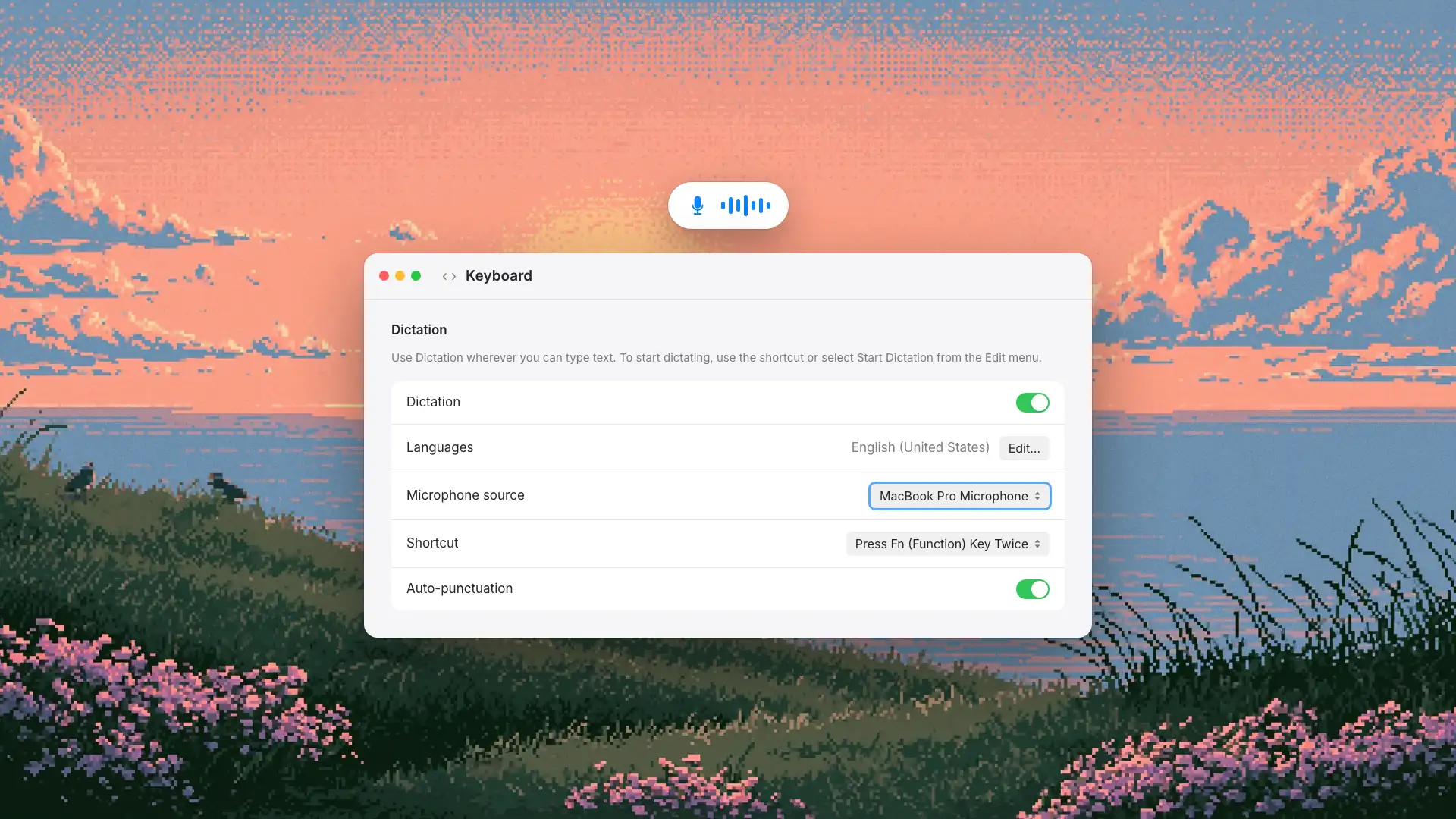
Choose Apple menu > System Settings, click Keyboard in the sidebar, and look at Dictation. If it is off, turn it on and click Enable. If dictation was on and stopped working, turning it off and on again here is a quick reset.
2. Use the shortcut your Mac expects
In the same Dictation section, open the Shortcut menu and check what is set. Then use exactly that. Two things trip people up:
- The Microphone key starts dictation when you press and release it. Holding it starts Siri instead, if Siri is on.
- A custom shortcut can clash with a shortcut in the app you are typing in. Choose Customize and pick a combination nothing else uses.
To test without any shortcut at all, click in a text field and choose Edit > Start Dictation from the menu bar. If that works, the problem is the shortcut, not dictation.
3. Turn off Voice Control
When Voice Control is on, standard Dictation isn't available. If you turned Voice Control on in Accessibility settings, or someone set it up on a shared Mac, turn it off and try again.
4. Choose the right microphone
In Keyboard settings > Dictation, check Microphone source. Automatic lets your Mac pick the device you are most likely to use, which is not always the one you are speaking into. If you use a headset, a USB microphone or a display with a built-in mic, choose it by name.
If your Mac has no built-in microphone, such as a Mac mini or Mac Studio, you need to connect one and select it here.
5. Raise the input volume
Choose System Settings > Sound, scroll to Input, select your microphone, and speak: the input level should move. If it barely does, raise the Input volume slider. Make sure nothing covers the microphone, such as a sleeve, a case or a hand resting on a MacBook's palm rest.
6. Watch out for Bluetooth headsets
If dictation misses the first word or two, a Bluetooth headset is the usual reason. Bluetooth microphones can take a second or two to start on a Mac, so speech you begin straight after pressing the shortcut can be lost while the headset switches into microphone mode. Wait a beat before speaking, or switch the microphone source to the built-in mic and see whether the problem goes away. We explain what is going on in why Bluetooth dictation misses your first words.
7. Check your internet connection
Dictation may need the internet. Whether it does is written under the Dictation switch in Keyboard settings: if your dictation is processed on your Mac, it works offline; if not, it needs a connection. Check System Settings > Network if you are unsure whether you are online.
8. Match the language and region
In Keyboard settings > Dictation, click Edit next to Languages and select the language and region you speak, such as English (United Kingdom) rather than English (United States) if that is how you talk. If you dictate in more than one language, add both, then switch while dictating by clicking the language next to the cursor or pressing the Globe key.
9. Cut background noise
Speak at a normal volume, sitting as you usually would. In a noisy or echoey room, a headset microphone close to your mouth helps more than speaking louder.
10. Know when it stops by design
Dictation has no length limit, but it stops by itself when it hears no speech for 30 seconds. If you pause to think and come back to find it off, that is the timeout, not a fault. Press the shortcut again to carry on.
11. Test in Notes or TextEdit
If dictation works in one app and not another, open Notes or TextEdit and try there. If it works in Notes, your Mac's dictation is fine and the other app's text field is the problem. Some fields, such as password boxes and some web forms, may not accept dictation. Try clicking into the field again before you start, or dictate in Notes and paste.
If none of this helps, restart your Mac and try once more before anything drastic.
When a dedicated app is the answer
If built-in dictation works but you keep fixing its output, the problem may not be a setting. Apple Dictation is free, built in and fine for short messages. It doesn't clean up what you say: filler words, false starts and run-on sentences arrive as you spoke them, and it has no place to teach it your colleagues' names or your industry's terms.
That is the gap a dedicated dictation app fills: an AI cleanup pass that turns speech into finished writing, a custom vocabulary for names and jargon, and one push-to-talk key that behaves the same in every app. Epilude is one of these apps, with a Local Mode that runs EP-1 on your Mac so your audio never leaves it. We keep an honest comparison of the options, including Apple's own, at best dictation app for Mac.
For the full setup guide and the voice commands worth knowing, see how to dictate on a Mac.
Frequently asked questions
Why is my Mac dictation not working?
The most common causes are that Dictation is turned off in Keyboard settings, you are pressing a different shortcut from the one set there, Voice Control is on, or the wrong microphone is selected. Work through steps 1 to 4 above first.
Why does Mac dictation stop after a few seconds?
Dictation stops automatically when it detects no speech for 30 seconds. If it seems to stop sooner, check the microphone source and input volume (steps 4 and 5): a quiet or wrong microphone means your Mac may not be hearing you at all.
Why does holding the microphone key open Siri?
That is how the key works when Siri is on. Press and release the Microphone key to start dictation; press and hold it to talk to Siri.
Does Mac dictation need an internet connection?
It depends on your Mac and language. The text under the Dictation switch in Keyboard settings says whether your dictation is processed on your Mac. If it is, dictation works offline. If not, it needs a connection.
Why does dictation type the wrong words?
Check that the language and region match how you speak, that the right microphone is selected, and that the room is not too noisy. Names and specialist terms are a known weak spot, because speech recognition favors common words; a dictation app with a custom vocabulary handles those better.
Sources
Apple's documentation, reviewed on 8 October 2026:
- If Dictation on Mac doesn't work as expected
- Dictate messages and documents on Mac
- Siri, Dictation & Privacy
- Mac mini tech specs and Mac Studio tech specs: the Audio sections list a built-in speaker and a headphone jack, and no microphone