Dictation transcripts come out raw. You usually want the AI to clean them up: punctuation, capitalization, paragraph breaks. But how much editing you want depends on what you're writing. A quick Slack reply doesn't need restructuring. A formal email might. The same setting for both gives you the wrong answer at least half the time.
Today we're shipping Cleanup: four levels of editing intensity, controlled from Settings, that work alongside Tone Match to give you the right output per app.
How it works
Open Settings → Tone Match → Cleanup. You'll see a side-by-side preview card for each level, so you can compare the same transcript at None, Light, Medium, and High before picking your default.
- None: the raw transcript with Personal Dictionary substitutions applied.
- Light: removes filler words and fixes grammar. Closest to what you actually said.
- Medium: edits for clarity and conciseness. The default for most users.
- High: aggressive rewrite for brevity and polish. Best for surfaces where you want the shortest possible message.
None bypasses the cleanup LLM entirely, which means it works without an internet connection. Light, Medium, and High all route through the cleanup LLM.
Cleanup runs automatically on every dictation when Smart Formatting is on. You set the level once and it applies. If you don't like what the AI did to a specific transcript, the original is preserved in the Home dashboard with one-click Undo.
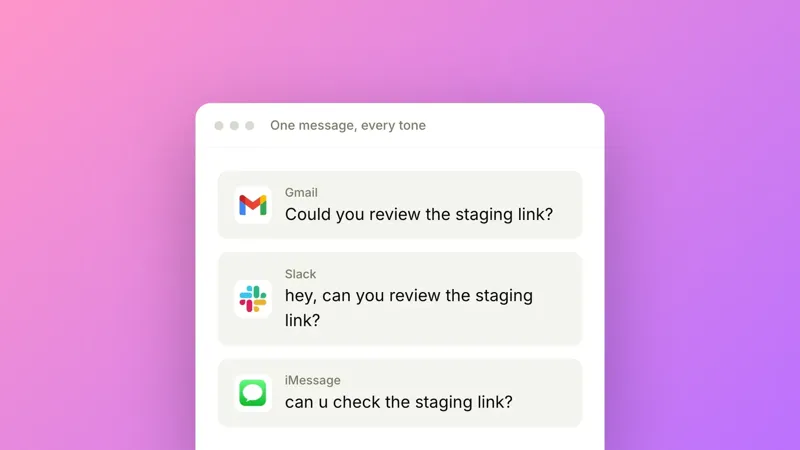
Cleanup works alongside Tone Match. Tone Match sets the tone you want, Cleanup sets the intensity, and both feed the same pipeline. You adjust them independently.
Availability
Cleanup is available now in Settings → Tone Match → Cleanup. Existing users default to Medium, with the option to change.